How to use Findora
A quick, step-by-step guide. The pictures come from the Findora Demo Store, a sample shoe and shirt shop you can try for free after you sign up.
1Create your account
Sign up with your name, country, email and a password. We'll email you a link to confirm your address; open it and you're in. New accounts get 10 free credits.
2Start a discovery
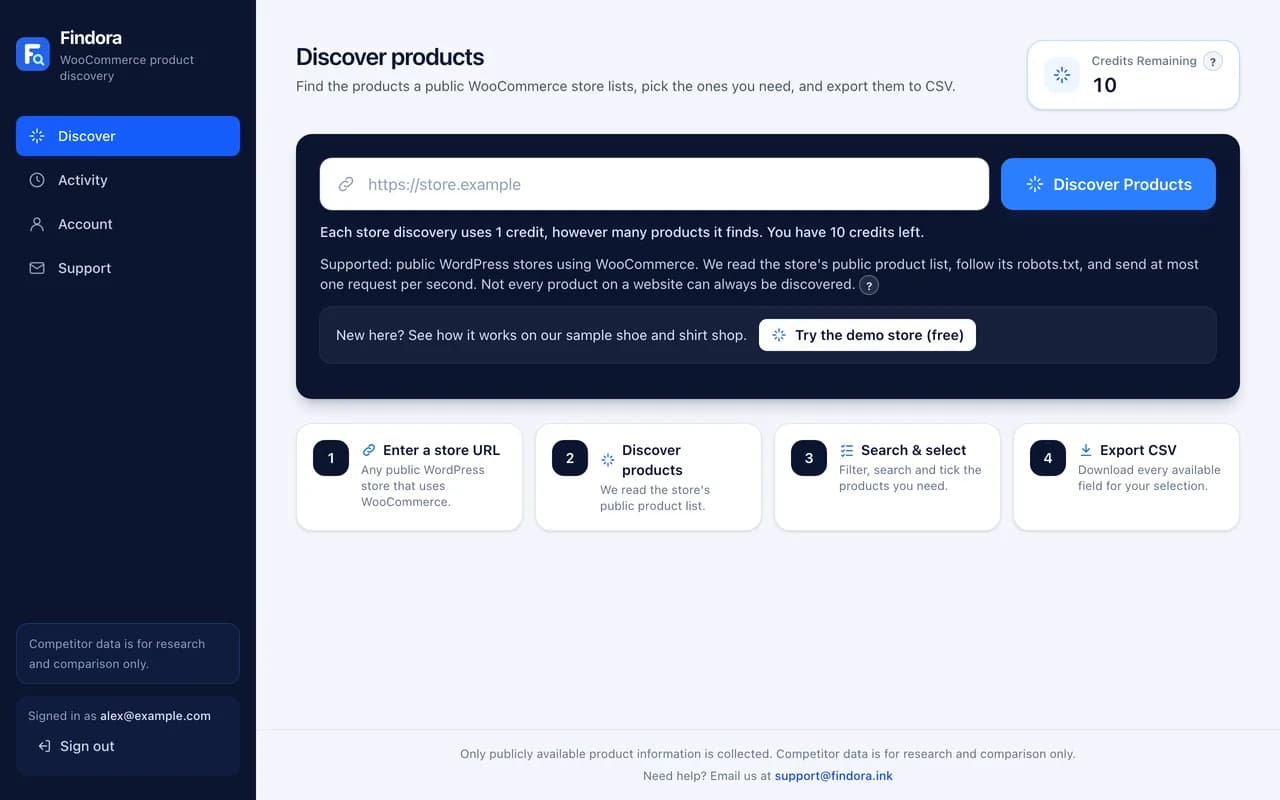
On the Discover page, paste the web address of a public WooCommerce store (for example https://store.example) and press Discover Products.
First time? Press Try the demo store (free) to see how everything works without using a credit.
3Watch it work
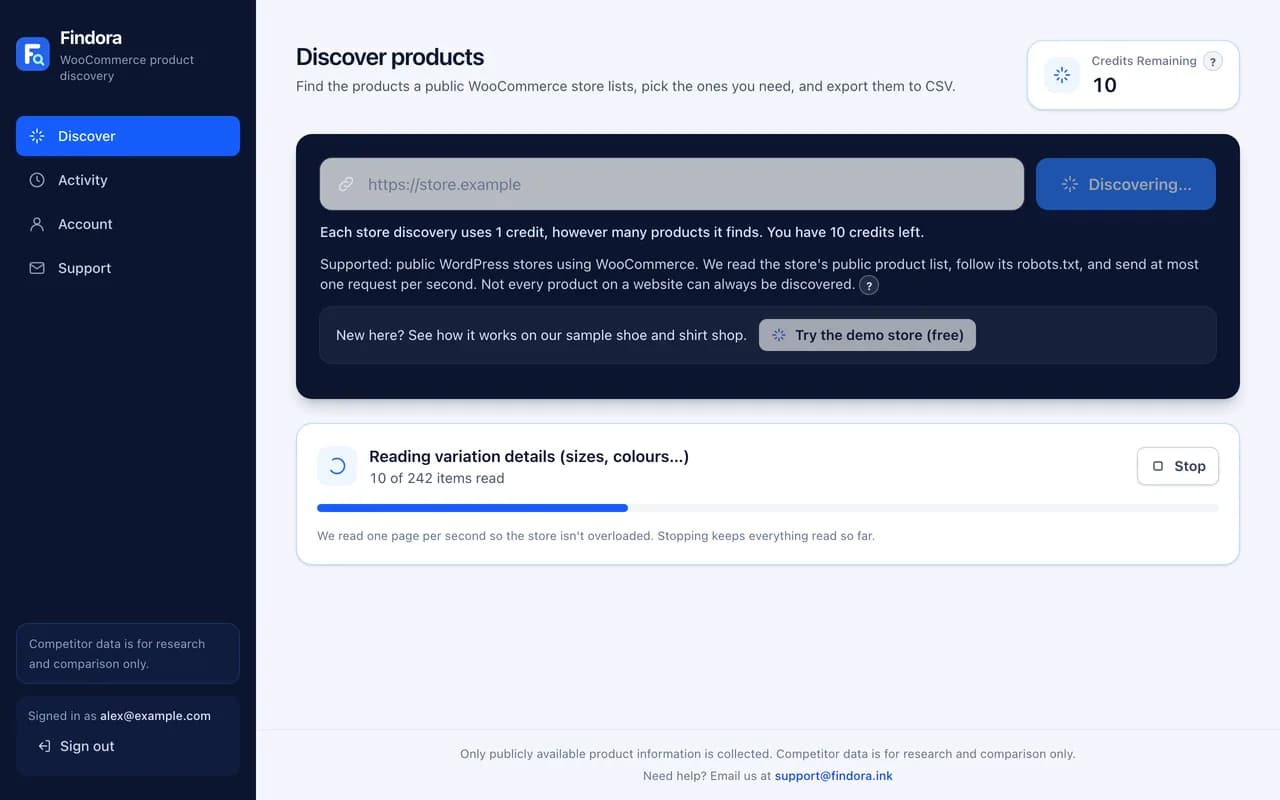
Findora reads the store's public product list page by page, then the details of every size and color. It reads at most one page per second to be gentle on the store, so large stores take a few minutes. You can press Stop at any time and keep what was found.
4Browse, search and filter
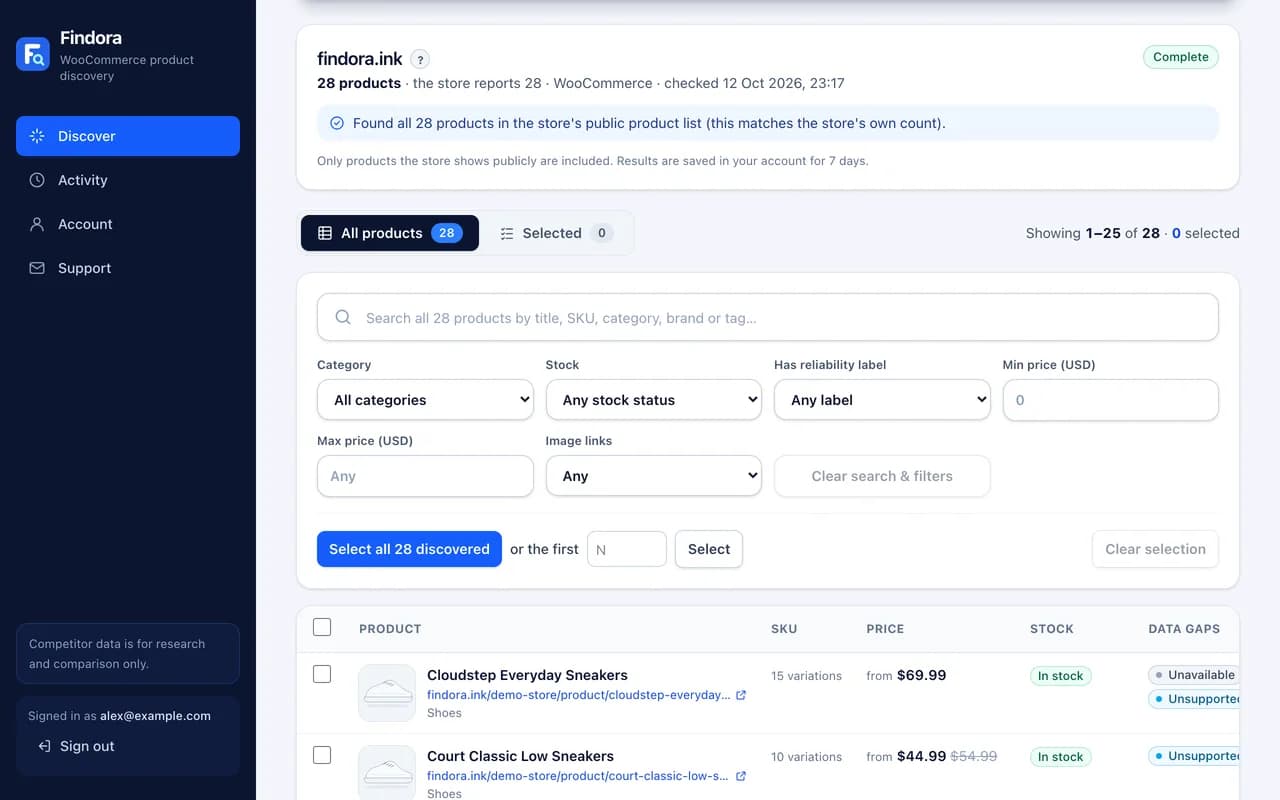
When it's done, you see every product with its image, price, stock and categories.
- Use search to find products by title, SKU, category, brand or tag.
- Use filters for category, stock, price range, images and data labels.
- Open What do the data labels mean? under the table to understand each label.
Your results are saved for 7 days, so you can come back to them.
5Select and export
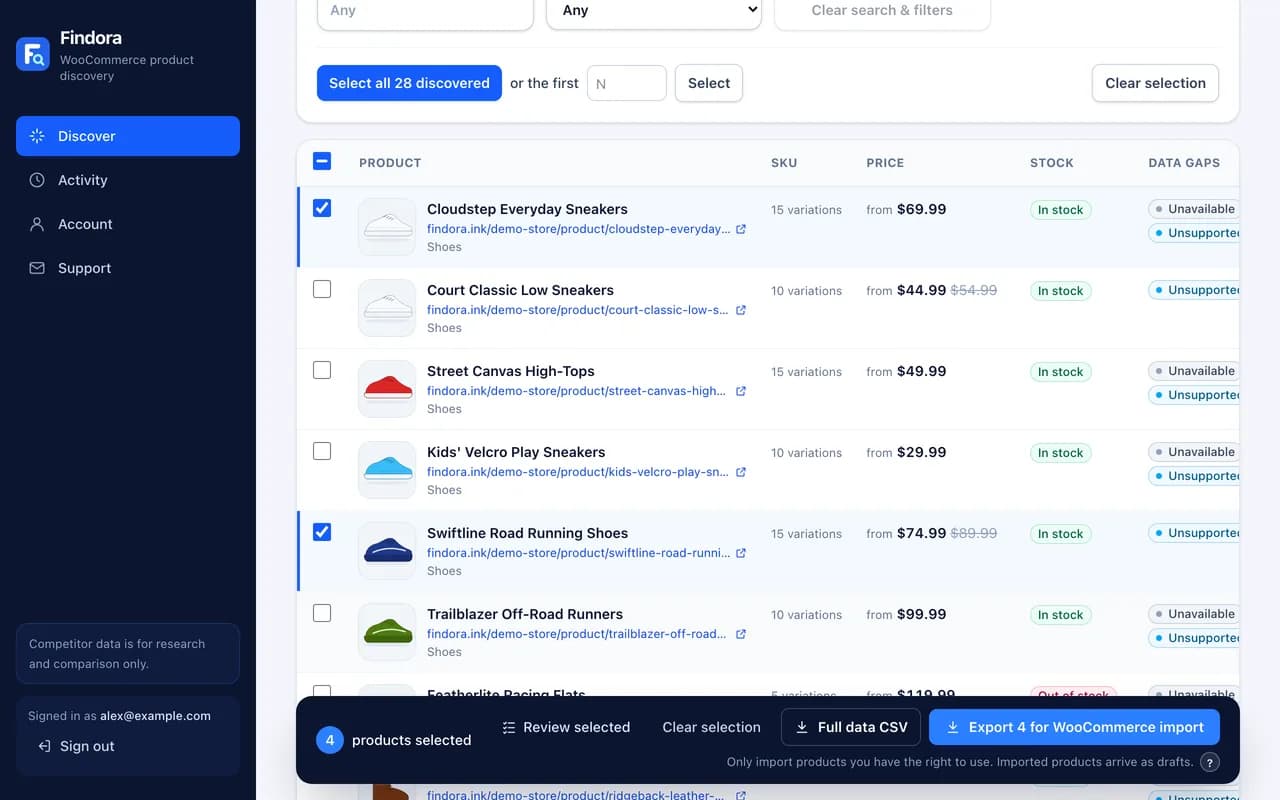
Tick the products you want, or select a whole page at once. A bar appears at the bottom with two export buttons:
- Export for WooCommerce import: a file ready to upload to your own WooCommerce store.
- Full data CSV: every field Findora found, for research and spreadsheets.
Exporting is free. Press the ? next to the buttons any time for a reminder.
6Import into WooCommerce
- In your WordPress admin, go to WooCommerce → Products → Import.
- Choose the file you exported with Export for WooCommerce import and press Continue.
- Keep the suggested column matches and press Run the importer.
- Products arrive as drafts, so you can check them before publishing.
Only import products you have the right to use.
7How credits work
Each new store discovery uses 1 credit, however many products it finds. Browsing, filtering, selecting and exporting are free, and so is the demo store. If a discovery can't start (for example the address isn't valid), no credit is used. Your balance is always shown at the top of the Discover page.
Need more credits? Email support@findora.ink.
8Your activity history
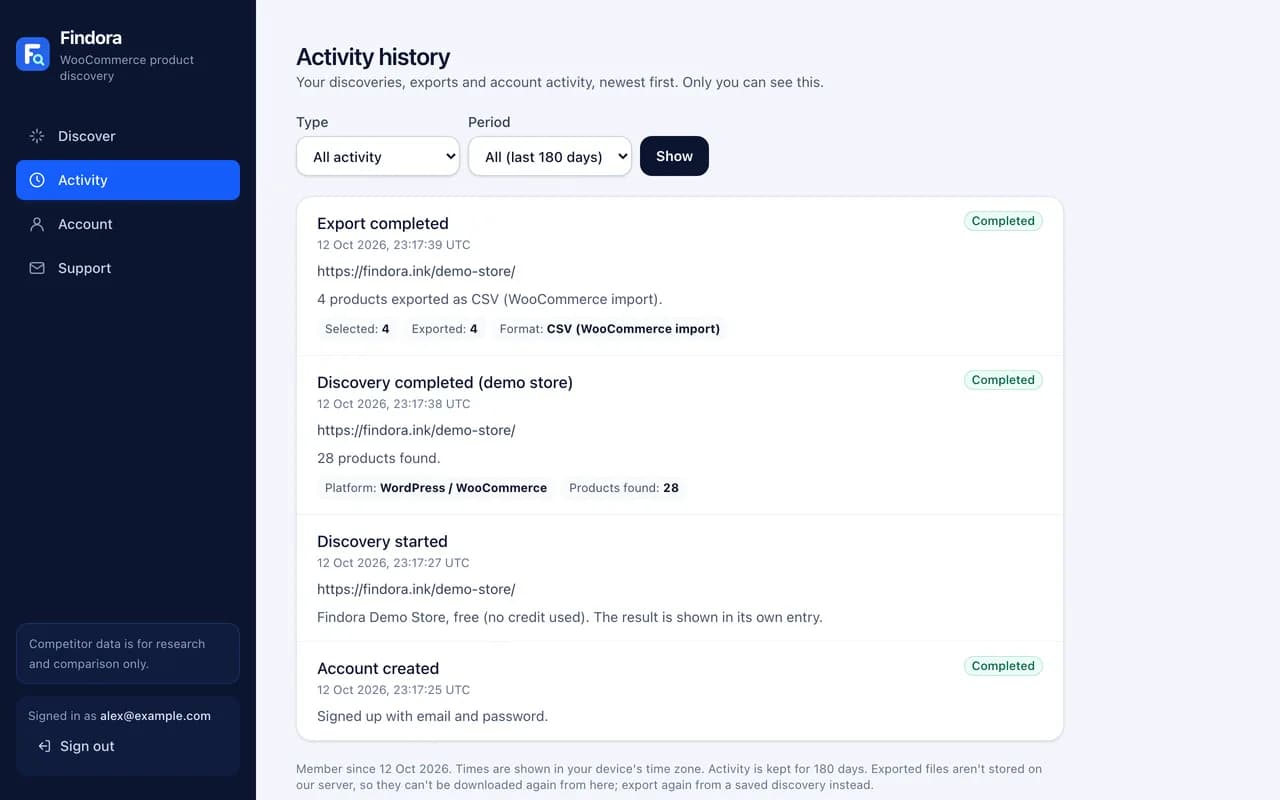
The Activity page lists everything you've done, newest first: each discovery with the number of products found, each export with how many products were selected and exported, credits added, and account changes. Use the filters to show only discoveries, exports or a time period. Only you can see your history.
9When a store can't be read
Some websites can't be read. Findora tells you why in your results and in your activity history. Common reasons:
- Not a WooCommerce store: the website uses a different shop system, or has no shop.
- Password-protected: the store isn't open to the public.
- robots.txt: the store asks tools like Findora not to read its products, and we respect that.
- Slow or unavailable: try again later.
10Keep your account safe
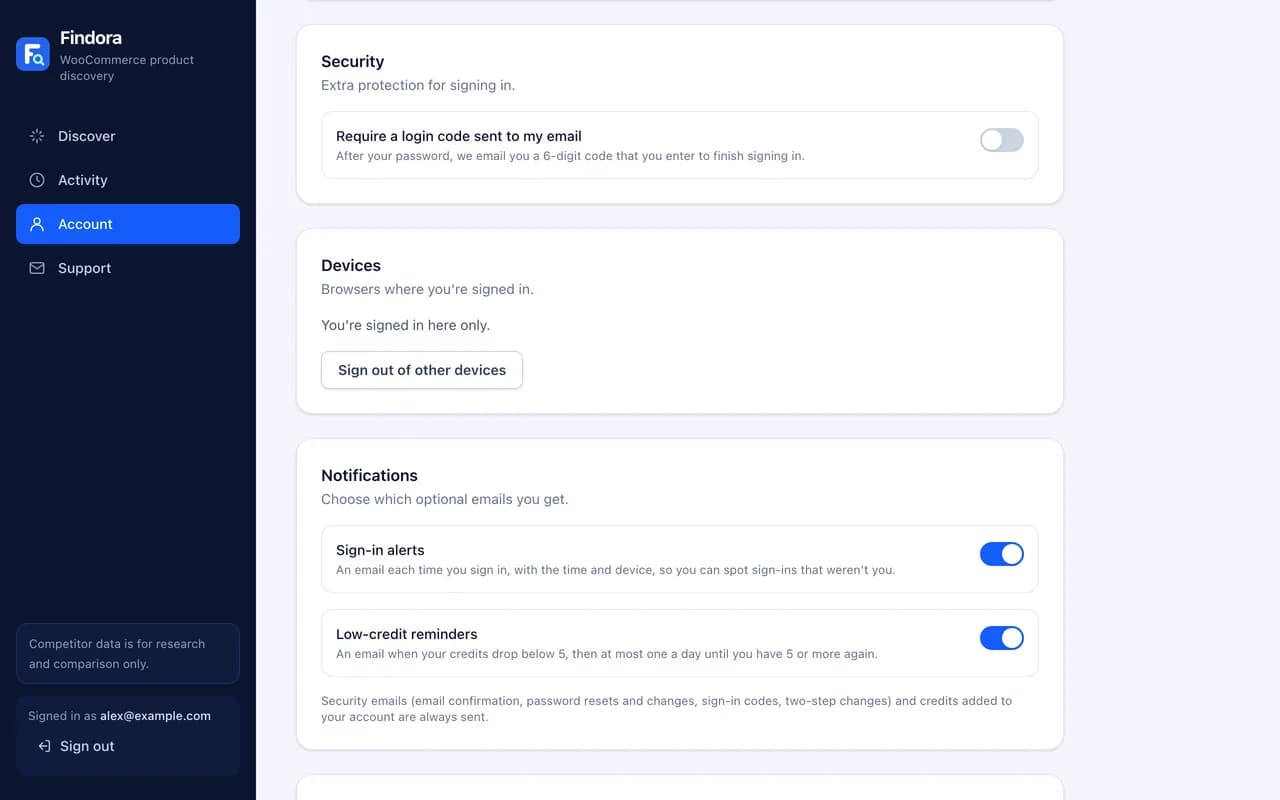
- Turn on two-step login in Account settings → Security: after your password, we email you a code.
- Keep sign-in alerts on, so you get an email whenever someone signs in to your account.
- Never share your password or sign-in codes. Findora will never ask for them.
Still stuck?
Read the FAQ, send us a message, or email support@findora.ink. We're happy to help.